
What we built: test configuration, accepted risks and saved views
Control which Maester tests run in each tenant, review new tests before they run, record accepted risks properly, and save the views you use every day.

Most of what’s in this release started with two customer questions:
- “Maester added 20 new tests last month and half of them lit up red. Can I decide when new tests start counting?”
- “We know about this failure and we’ve decided to live with it. How do I stop it showing up in every report without hiding it from the auditors?”
Until now, the honest answer to both was “edit your Maester configuration by hand, or ignore the noise”. That’s fine for one tenant and a spreadsheet. It doesn’t work when you look after several tenants, or when a decision has to be explained to someone else next year.
So we built the missing pieces: Configuration, New tests, Accepted risks and saved views. We also made report uploads much easier to set up and debug, and made the app cheaper to run when it’s idle. The release notes have the full list. This post is about what we built and why.
Configuration: set it once, customize where it differs
The new Configuration page controls how Maester runs in your tenants. Every setting works the same way. There’s an All tenants default that applies to every tenant, including ones you connect later, and you can override it for a single tenant only where that tenant needs to be different.
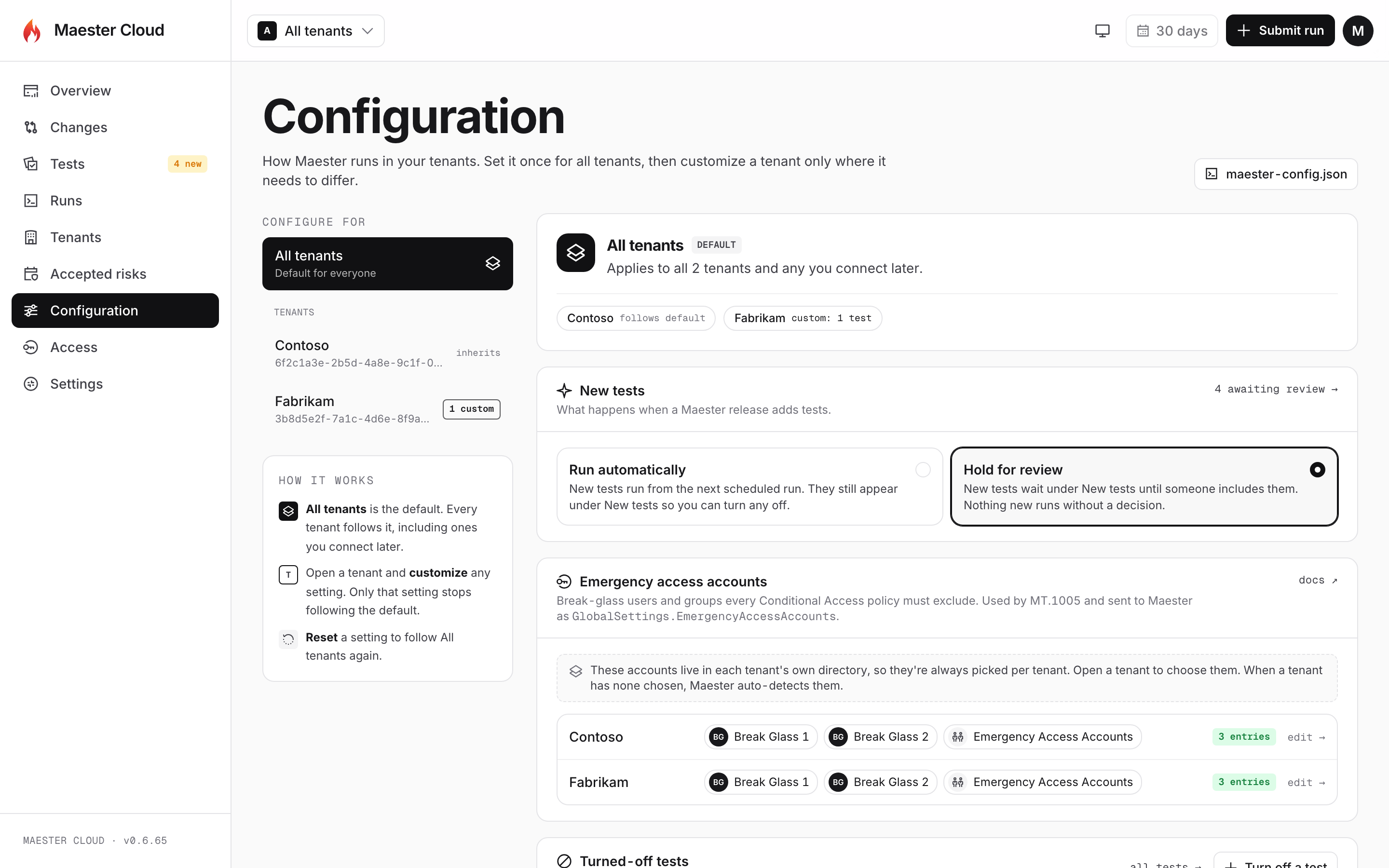
Fabrikam has one custom setting. Contoso follows the default.
Three settings live here today:
- Turned-off tests. Tests that Maester skips entirely: no result, no history, no alerts. Turn a test off for every tenant or just one, and record why.
- New tests. What happens when a Maester release adds tests. They can run automatically, or be held for review so nothing new runs without a decision.
- Emergency access accounts. Maester’s Conditional Access tests check that every policy excludes your break-glass accounts. You used to set these in a config file. Now you pick them from a people picker that searches the tenant’s directory, and it even suggests the accounts every enabled Conditional Access policy already excludes.
Turned-off tests are enforced twice. The managed runner skips them, and the portal drops them when a report comes in, even if the report came from an older runner or a pipeline you run yourself. We did this on purpose. A test you’ve turned off should never come back just because something upstream didn’t get the memo.
If you run Maester yourself (in GitHub Actions or Azure DevOps, say), the new Get-MaesterCloudConfig cmdlet gives your pipeline the same configuration. It writes your emergency access accounts into Maester’s config file and returns the tags to exclude:
$config = Get-MaesterCloudConfig -PortalUrl https://maester.contoso.com -TenantId $tenantId -Path ./tests -AuthenticationMode AppOnly
Invoke-Maester -Path ./tests -ExcludeTag $config.ExcludeTag
New tests: a review queue instead of a surprise
Maester grows every month, and that’s a good thing. But a batch of new tests landing in your scheduled run can turn a quiet Monday report into a wall of red, with no change in your tenant at all.
When new tests are held for review, they wait on the New tests page, and the Tests item in the sidebar shows how many are waiting. For each test you can include it in all tenants, choose specific tenants, or skip it. You can also select a group and decide on them all at once.
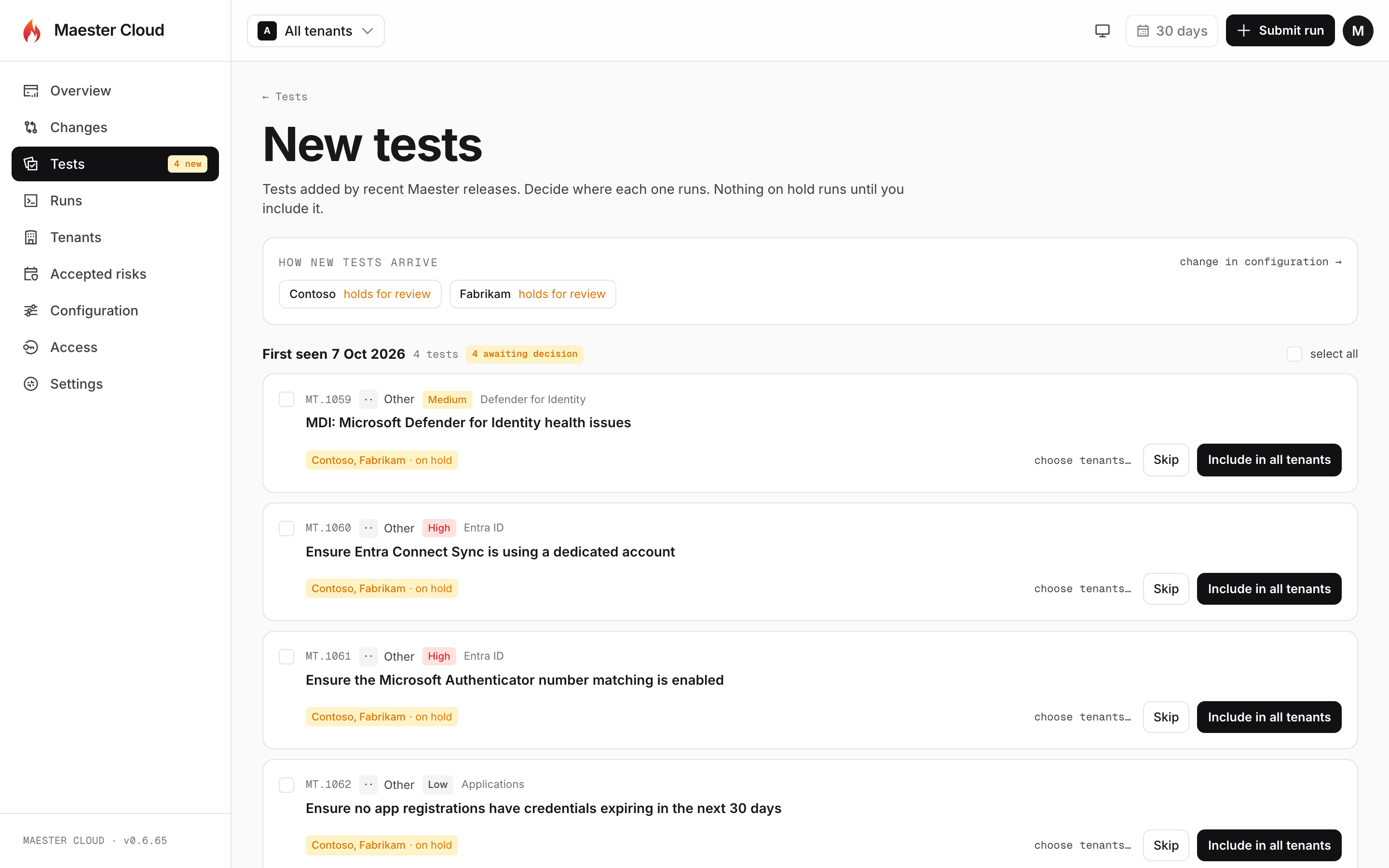
Four tests from a new Maester release, on hold until someone decides where they run.
A detail we cared about: a test only counts as “new” once your tenant has a baseline. Your very first upload doesn’t flood the queue with every test Maester has ever shipped.
Accepted risks: decisions with an owner and an expiry date
Every security team has a list of findings they’ve decided to accept. It usually lives in a spreadsheet, a ticket, or someone’s memory. Maester Cloud now has a real register for them.
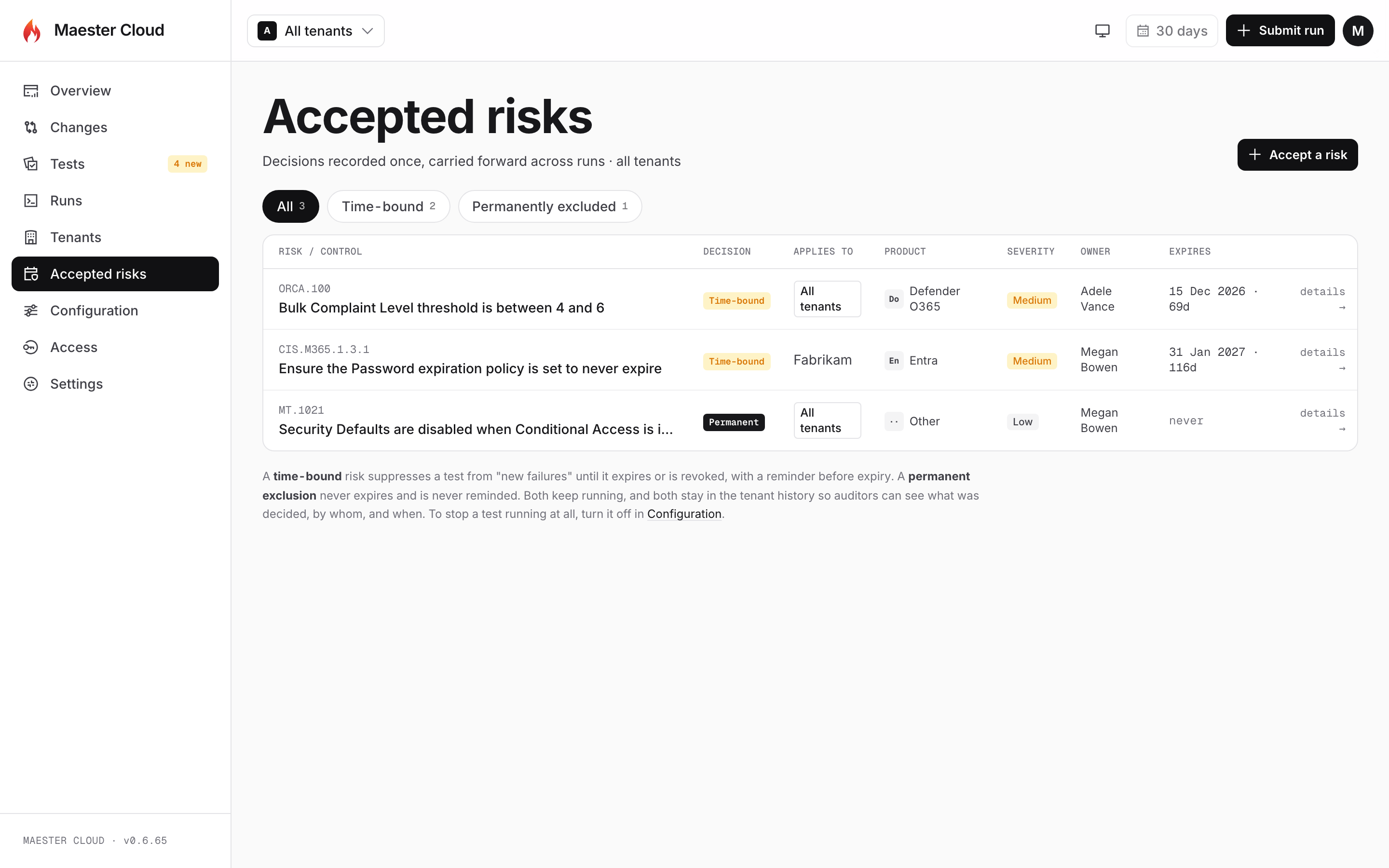
Each decision applies to all tenants or specific ones, and has an owner and, if it’s time-bound, an expiry date.
A decision is one of two kinds:
- Time-bound. The risk is accepted until a date. It stops counting as a new failure until then, and comes back once the date passes.
- Permanent exclusion. For tests that will never apply to you. It never expires.
Each decision records the reason, any mitigation in place, an owner, and an optional ticket or evidence reference.
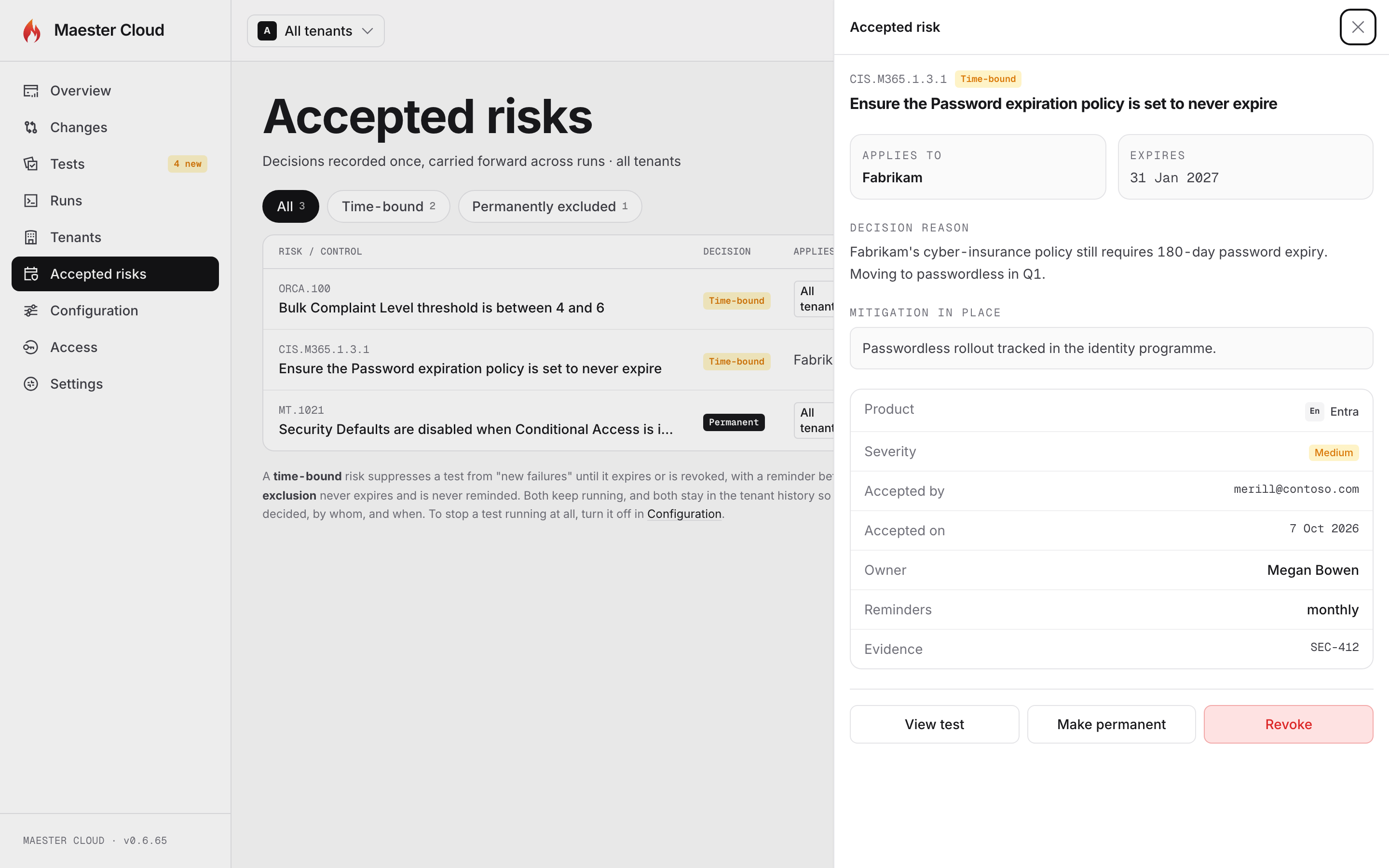
The detail panel shows who accepted the risk, why, and when.
The design choice that matters most here is that accepting a risk never changes your stored results. The test keeps running and its result stays in the tenant’s history exactly as Maester reported it. The decision is applied when you look at the results, so revoking it is instant and complete, and an auditor can always see both the raw result and the decision on top of it. In the drift email, a regression covered by an accepted risk moves out of the headline and into “other changes”.
Not sure whether to turn a test off, accept the risk, or exclude it? The Configuration page has a short guide that compares the three.
Saved views: your filters, one click away
This one came straight from a customer. They wanted to filter the Tests page by where a test comes from (Maester, CISA, CIS, EIDSCA, ORCA, Zero Trust, or their own custom tests) across all their tenants. They also wanted a standing view of their own security framework’s custom tests to track remediation.
So we built saved views, the same idea as saved filters in Jira or queries in Azure DevOps.
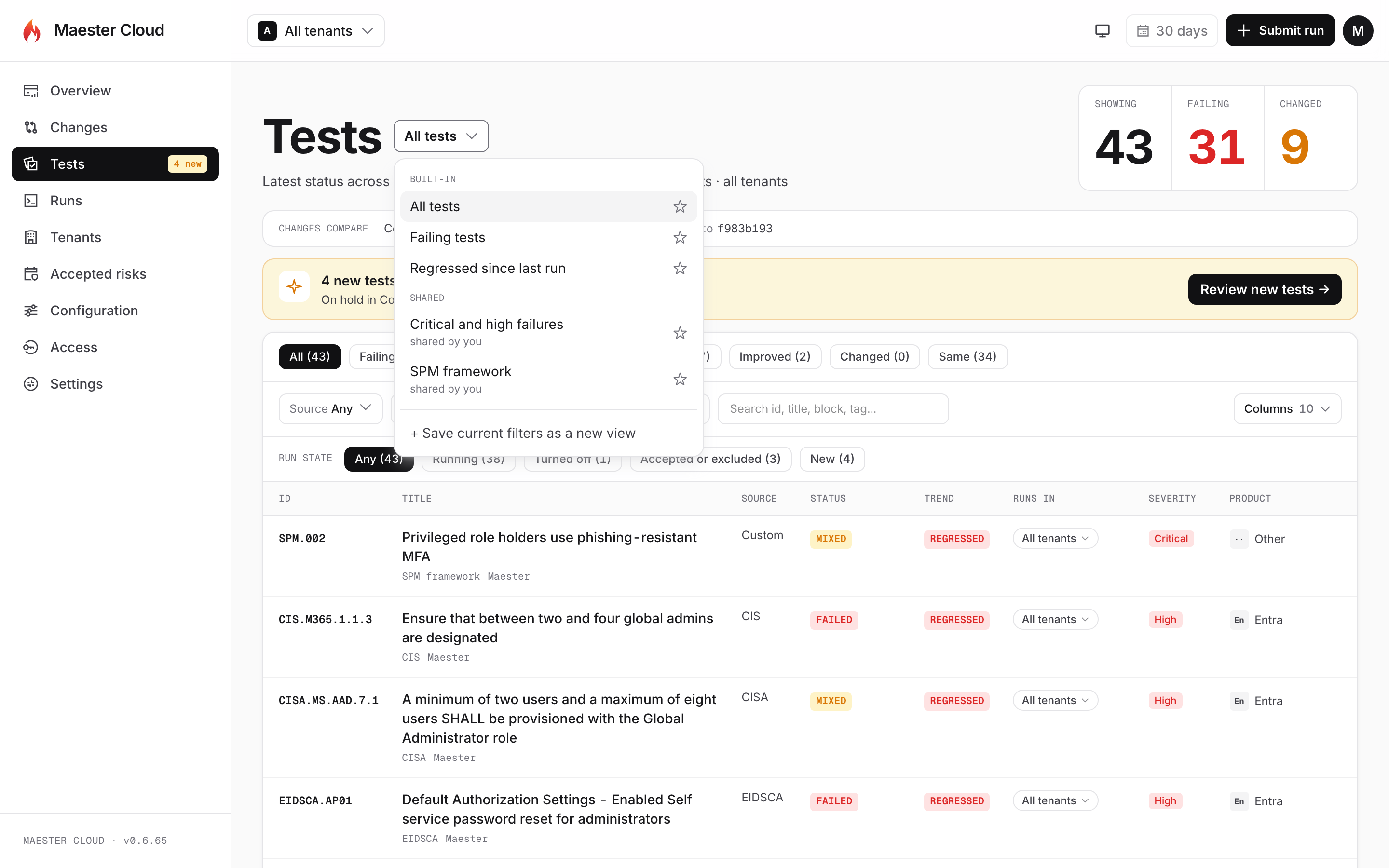
Built-in views, your own views, and views shared with everyone in the portal.
The Tests and Changes pages gain new filters for source, tag, severity and product. You can also choose which columns to show and sort by any column. Save the result as a view, share it with your team, and star one to open it by default. Filters live in the URL too, so you can send a colleague a link to exactly what you’re looking at.
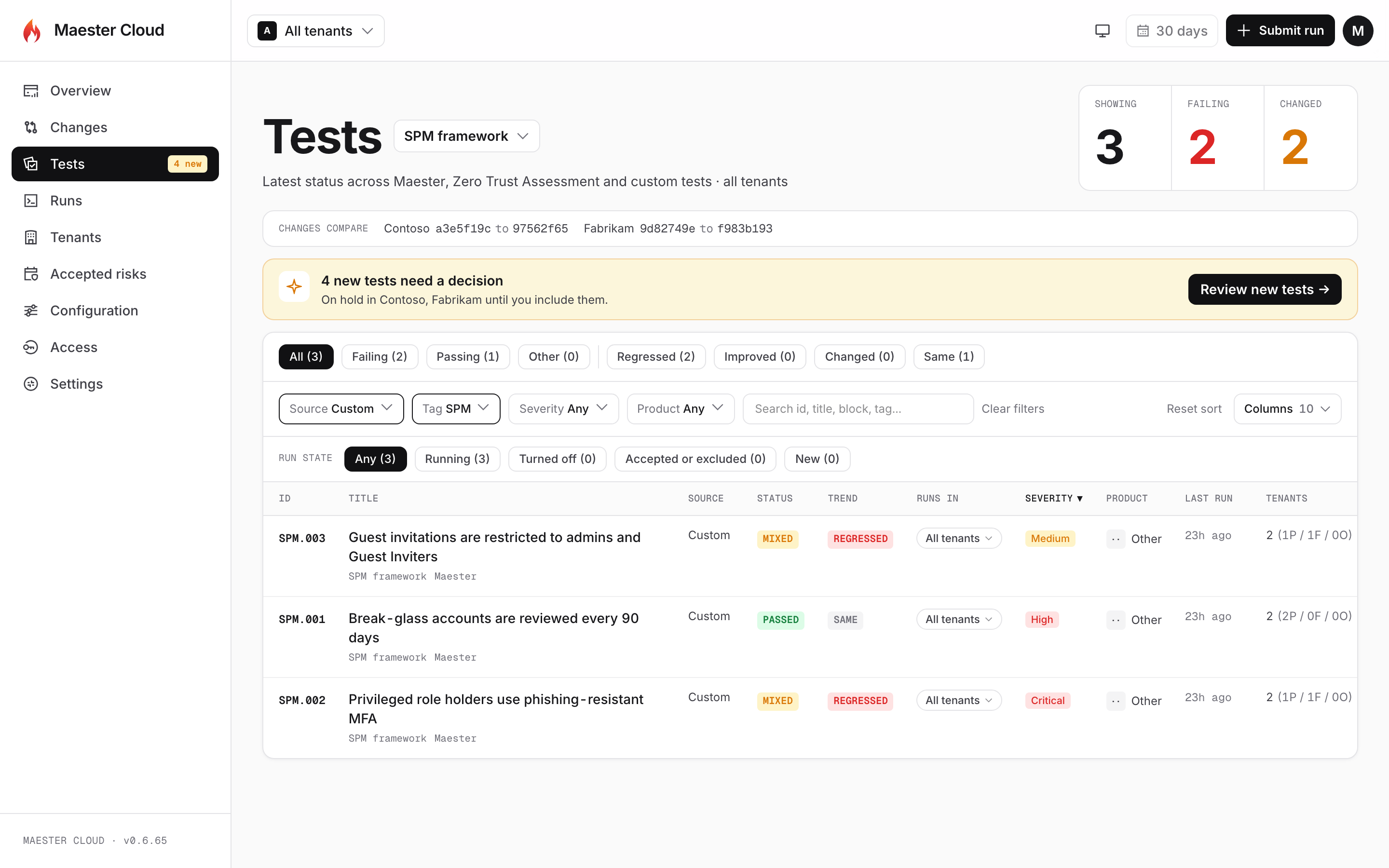
The “SPM framework” view is just Source: Custom plus Tag: SPM, saved and shared.
We built views with the upcoming Maester 3.0 test format in mind. They only filter on normalized fields like source, severity and tags, so they’ll keep working when the format changes.
Ad hoc runs that don’t pollute your history
Sometimes you want to run a few tests right now, perhaps to check a fix, without that run becoming part of the record. When you start a managed run, you can now pick Ad hoc run instead of a recorded one. Ad hoc runs let you choose which tests to run: the enabled tests, only the new ones, or specific test IDs. They show in Runs with their own icon. They’re kept out of history, trends, drift and the email digest, and they’re deleted after seven days.
Report uploads you can debug
If you send reports from your own pipelines, setting up uploads used to be the hardest part of getting started. When an upload was refused, nothing told you which identity the portal saw or what to change. We fixed that:
Send-MaesterCloudReportnow ships in the MaesterCloud module on the PowerShell Gallery, on the stable channel, so there’s nothing to download from your portal. The Sending reports guide covers installing it and setting up uploads for a person or for automation.- The new
Test-MaesterCloudUploadchecks every step (portal, sign-in, identity, uploader permission) without uploading anything, and tells you exactly what to fix when one fails. - On the Access page, a new Find the app picker searches your tenant for the app or managed identity you want to allow, so you no longer copy IDs by hand. If you do paste them, the portal checks them against Microsoft Graph. It corrects the most common mistake (using the App registration’s object ID instead of the Enterprise application’s) for you.
- Runs uploaded by automation now show the name you gave that uploader, instead of a generic “Maester Cloud uploader”.
Test-MaesterCloudUpload -PortalUrl "https://your-portal-url" -AuthenticationMode AppOnlyQuieter, cheaper, more reliable
Some of the work in this release is invisible, and that’s the point.
- Lower idle cost. Azure Container Apps bills a much lower rate while an app is idle. But a couple of our once-a-minute background checks re-read data that grew with every run, which kept busy portals from ever counting as idle. Those checks now cost the same no matter how much history you have, so the app can drop to the idle rate between runs.
- Scheduled runs retry. If Azure is briefly unavailable when a nightly run starts, the run is retried later the same night instead of being lost for the day. One tenant’s failed start no longer holds up the other tenants’ schedules either.
- Updates come first in setup. When a new version is available, setup.maester.cloud now puts Update to vX.Y.Z at the top of your instance’s next steps, and it never offers an older release as an “update”.
Thank you
Almost everything in this post started as a question from a customer. If something in Maester Cloud slows you down, tell us at [email protected]. There’s a good chance it ends up in a future release, and on this blog.
To update, open setup.maester.cloud, choose your instance, and select Update.